
How to use AutoMalaya OBD
From adapter to report in a few minutes — all you need is an iPhone or iPad, a compatible Bluetooth OBD-II adapter, and your car.
- 1
Get a compatible adapter
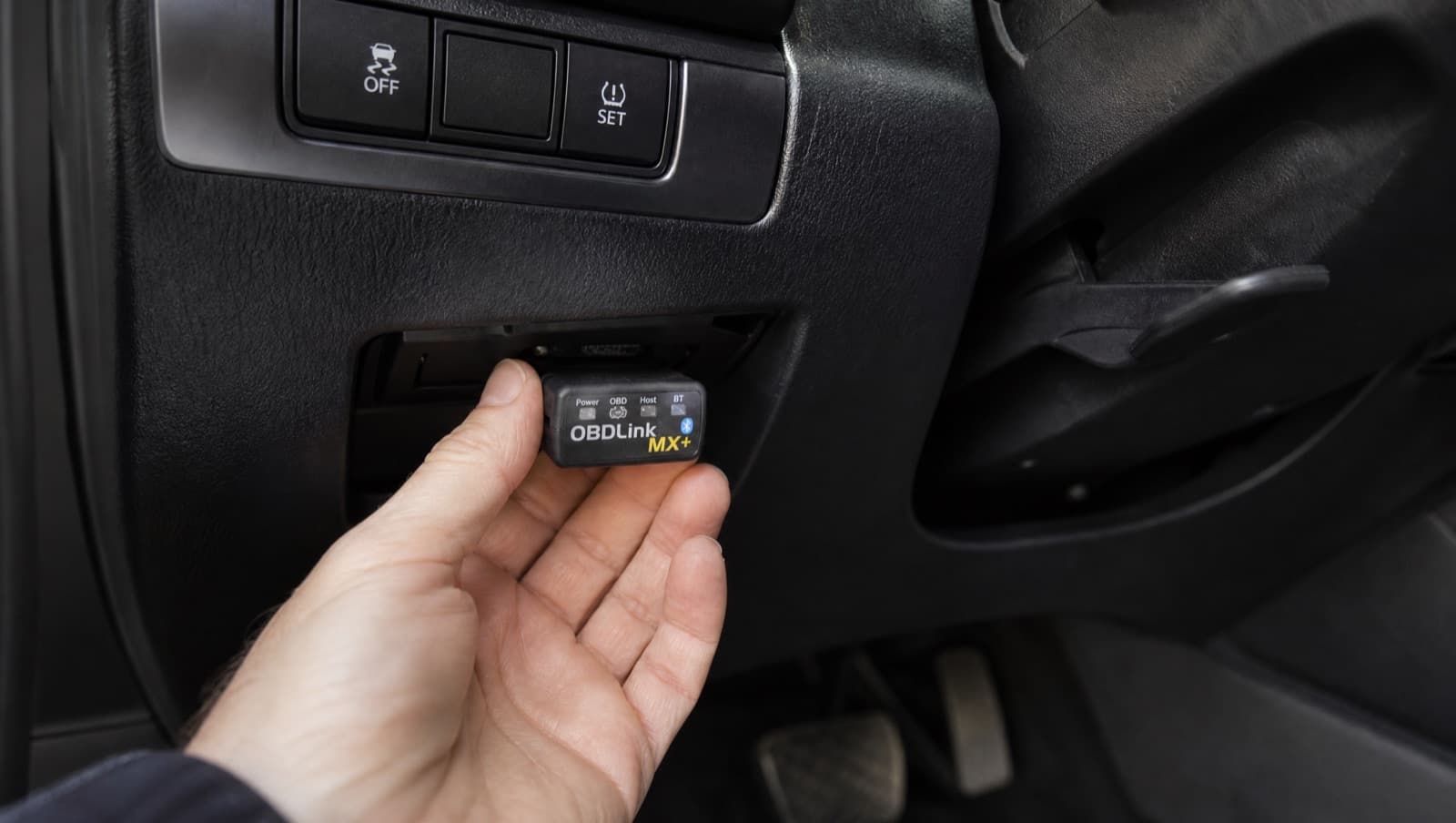
Use a Bluetooth LE OBD-II adapter (the OBDLink MX+ is the recommended baseline). Classic Bluetooth ELM327 dongles are not supported on iOS or iPadOS.
- 2
Plug it into the OBD-II port
The port is usually under the dashboard near the steering column. The adapter draws power from the car.
- 3
Turn the ignition on
Switch the ignition on, or start the engine if you want live data such as RPM and coolant temperature.
- 4
Connect over Bluetooth
Open AutoMalaya OBD, go to the Scan tab, tap Adapter, and connect. No account is needed.
- 5
Run a scan
Tap Start Live Scan. The app reads fault codes, live data, readiness monitors, and the VIN where supported.
- 6
Read the report
Get a health score, risk level, likely causes, repair priority, and an approximate Malaysia cost range, all in plain English.
- 7
Export or share
Export a PDF to send to your mechanic, or keep it in your scan history.
Inspecting a used car
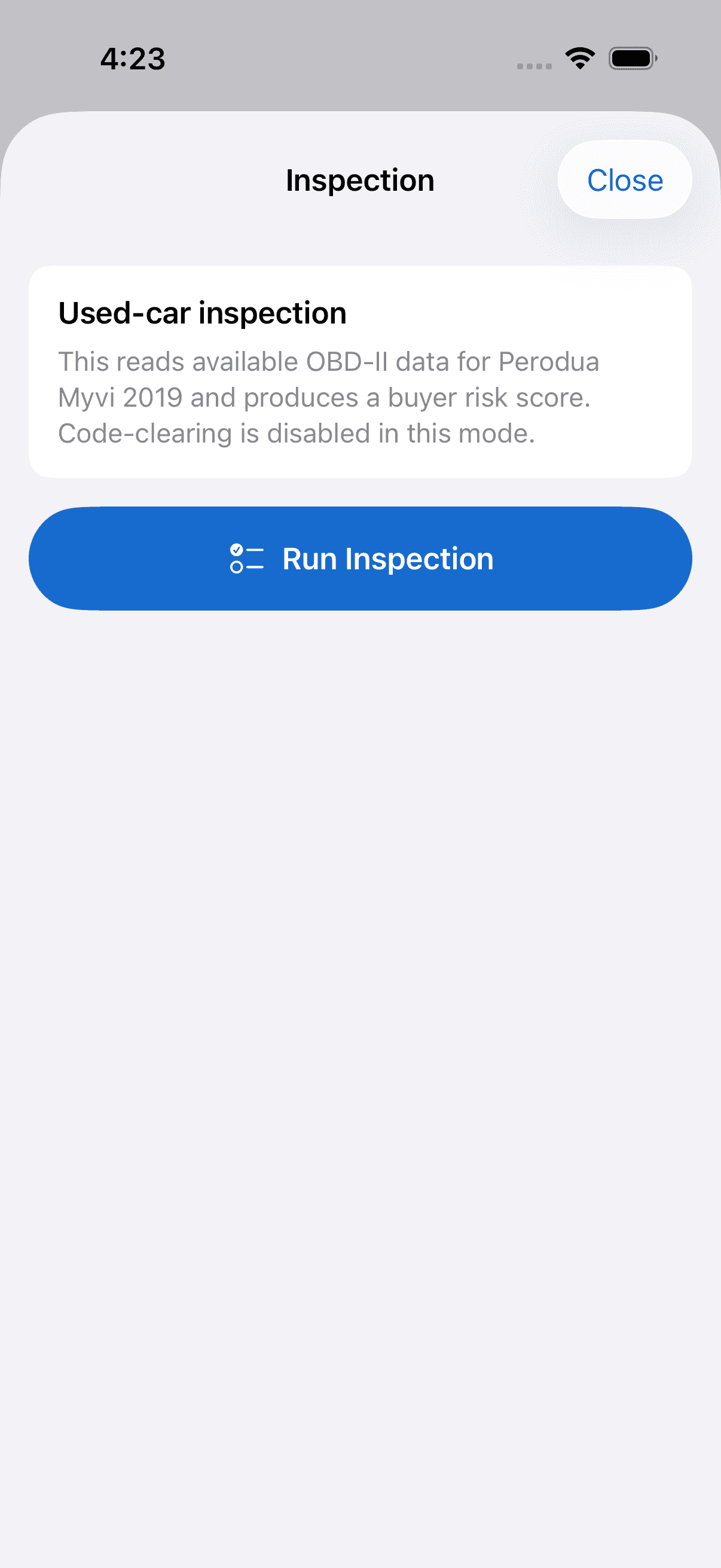
Add the car to your Garage, open it, and choose Run used-car inspection. The app reads available OBD-II data and produces a buyer-risk score and a shareable report. Code-clearing is disabled in this mode so a car can’t be cleaned up just before a sale.
No adapter yet? You can explore everything in Demo Mode. Diagnostics are based on available OBD-II data and do not replace inspection by a qualified mechanic.
 Coming soon onAndroidCompatible adapters